Alt code produces the wrong character
Confirm Num Lock, the numeric keypad, the leading zero, and the exact decimal code. If it still differs, use Character Map or a Unicode-aware method.
TYPING GUIDE / WINDOWS
Choose between copy and paste, a language layout, US-International dead keys, Character Map, and numeric-keypad Alt codes.
For one occasional letter, copy it. For repeated writing in one language, install that language’s keyboard. US-International is useful for several Western European accents. Use four-digit Alt codes only when you have a numeric keypad and a verified code.
METHOD SELECTOR
The best method depends on how often you type the character, whether you know its name or code, and which input layout is active. Use this table as a starting point, then follow the detailed instructions below.
| Situation | Best starting method | Why |
|---|---|---|
| One character | Copy and paste | No setup and no code to memorize |
| Regular language writing | Language keyboard layout | Fastest access to the complete language set |
| Several Western European languages | US-International | Dead keys add common acute, grave, tilde, circumflex, and diaeresis marks |
| A known legacy character | Four-digit Alt code | Quick when a numeric keypad and dependable code are available |
| An uncommon Unicode character | Character Map or Word Alt+X | Works beyond the small legacy Alt-code repertoire |
Windows can keep multiple input languages installed. A layout changes what the keys produce in software; it does not change the labels printed on the physical keyboard. Use the taskbar input indicator or Windows key plus Space to switch among installed layouts.
Choose the language layout when you write complete sentences regularly. Polish Programmers, Turkish Q, German, Portuguese, French, and Spanish layouts provide the character set and punctuation expected for their language.
A dead key waits for the next keystroke instead of inserting itself immediately. For example, the apostrophe key followed by E can produce é, and the quotation-mark key followed by U can produce ü on the US-International layout.
To type the punctuation mark itself, press the dead key and then Space. If quotation marks suddenly wait for another letter, check whether Windows switched you to US-International.
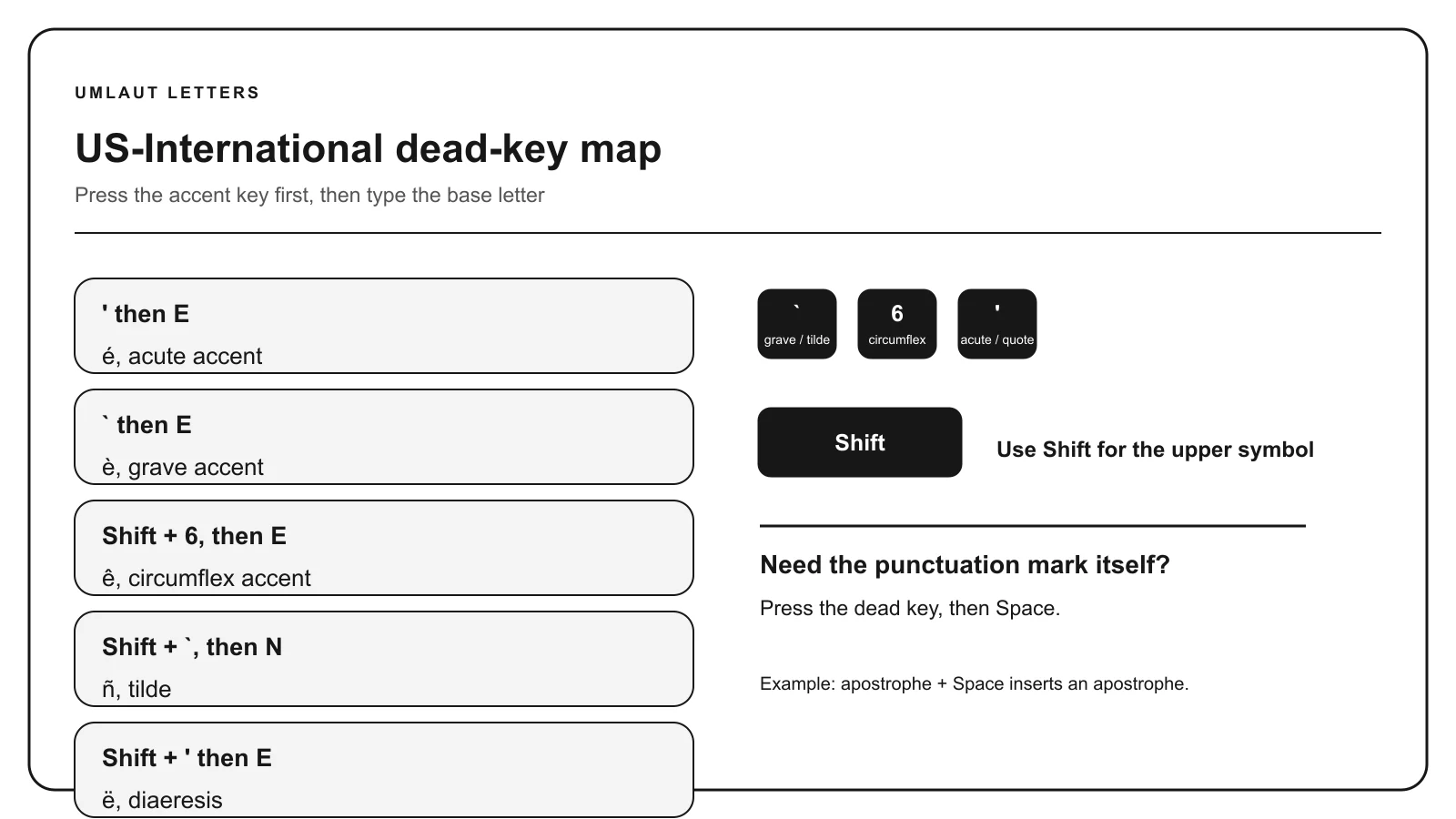
Dead-key combinations depend on the selected layout. A shortcut documented for US-International should not be assumed to work on the ordinary US layout.
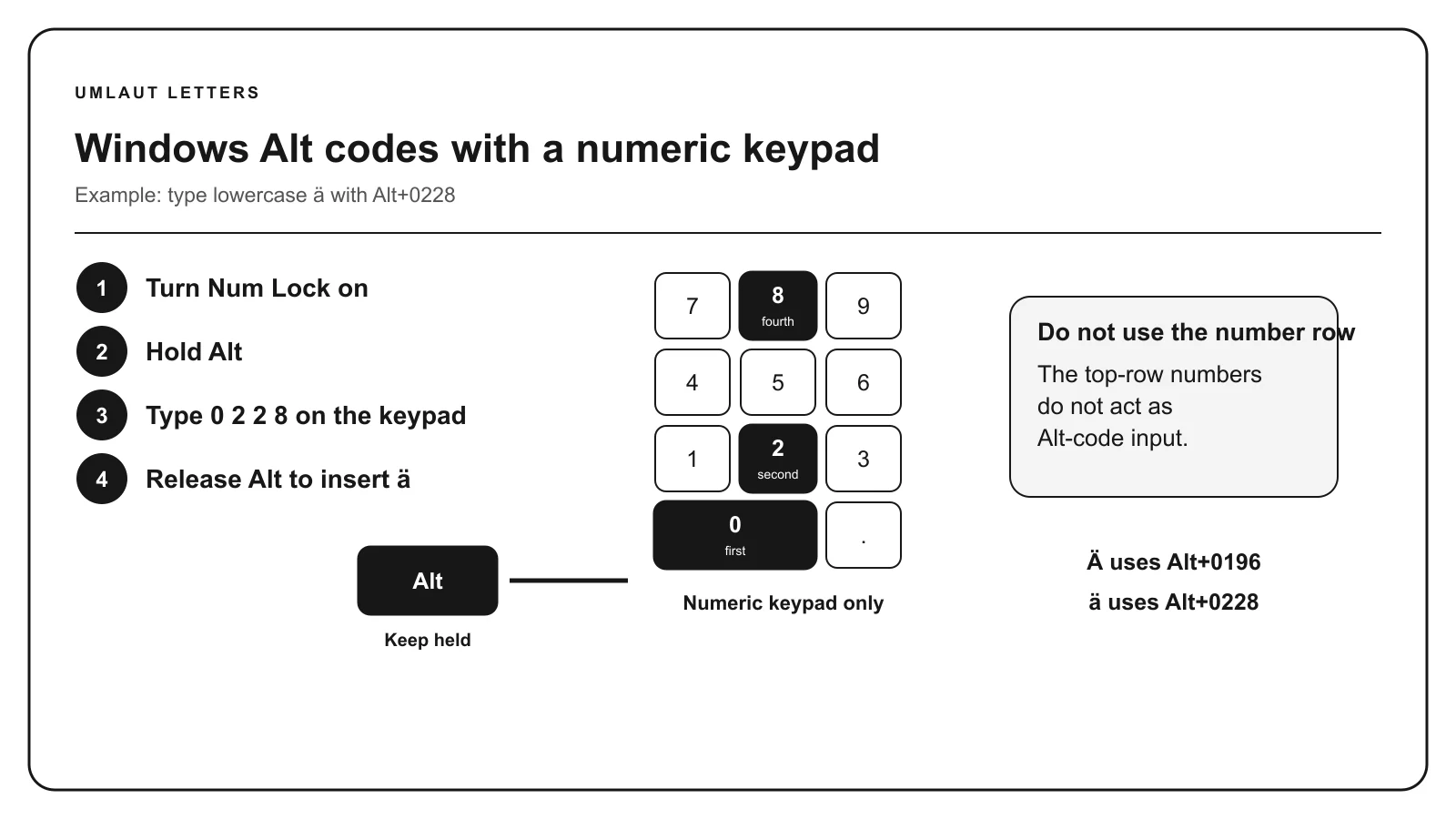
Hold Alt, enter the full four-digit decimal sequence on the numeric keypad, and release Alt. Keep the leading zero when the code specifies one. The numbers above the letter keys are not a substitute for the numeric keypad.
Legacy Alt behavior depends on Windows, the application, and character encoding. Many extended Latin characters do not have a dependable universal Alt sequence. Character Map, a language layout, or Word Unicode conversion is safer for those characters.
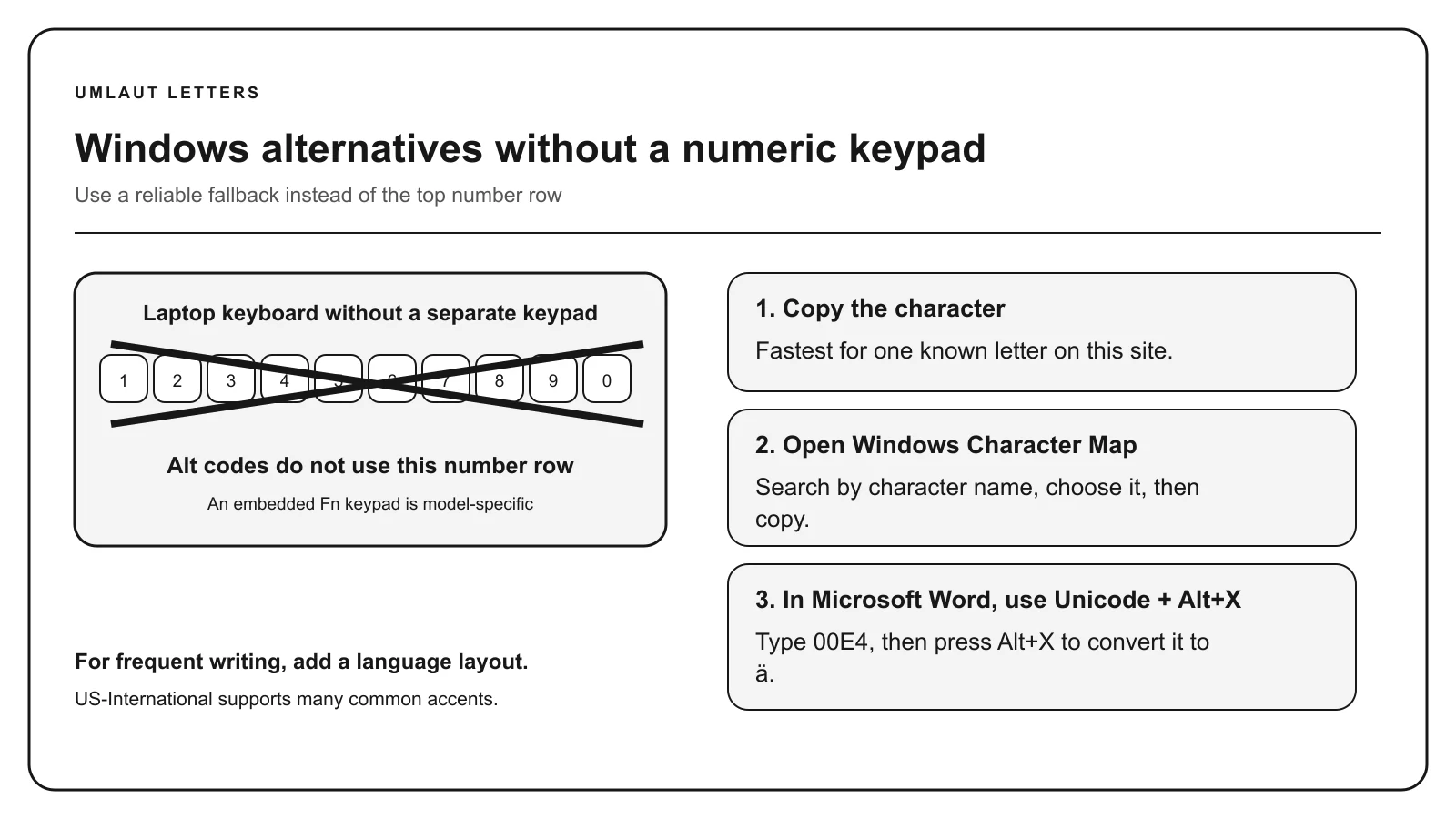
Character Map lets you inspect characters supported by a selected font, choose one, and copy it. Search by visual category or use Advanced view when available. A missing box in the destination usually means its font lacks the glyph, not that copying changed the code point.
For a one-time task, the character pages on this site are faster because they identify the language role and provide the exact Unicode value beside the copy control.
TROUBLESHOOTING
Confirm Num Lock, the numeric keypad, the leading zero, and the exact decimal code. If it still differs, use Character Map or a Unicode-aware method.
Use a language layout, Character Map, Word Alt+X, or copy and paste. Do not assume the top number row will work.
A dead-key layout is active. Press Space after the punctuation mark, or switch back to the ordinary layout.
Try a font with broader Unicode coverage. The destination font may not contain the required glyph.
COMMON QUESTIONS
Use a language keyboard for regular writing. Copy and paste is fastest for one character, while US-International works well for common accents across several languages.
No. Microsoft’s traditional four-digit Alt method requires the numeric keypad.
No. Legacy Alt codes cover a limited and environment-dependent set. Use Character Map or Word Alt+X for characters outside it.
A layout-switch shortcut may have been pressed. Check the input indicator in the Windows taskbar and select the intended layout.
References: Microsoft Windows keyboard guidance, Microsoft character-code guidance, Unicode character charts.