Alt+X changes too many characters
Select only the intended hexadecimal code before pressing Alt+X.
TYPING GUIDE / MICROSOFT WORD
Use Word’s accent shortcuts for common marks, hexadecimal Unicode conversion for exact characters, or Insert Symbol when you prefer a visual picker.
For common vowel accents, use Word’s Ctrl-based accent shortcuts. For an exact Unicode character, type its hexadecimal value and press Alt+X. Insert Symbol is the best visual fallback when you do not know the code.
METHOD SELECTOR
The best method depends on how often you type the character, whether you know its name or code, and which input layout is active. Use this table as a starting point, then follow the detailed instructions below.
| Situation | Best starting method | Why |
|---|---|---|
| Common acute or grave vowel | Ctrl accent shortcut | Fast and readable once learned |
| Known Unicode value | Hex code plus Alt+X | Precise access to a large Unicode range |
| Unknown code | Insert Symbol | Visual search by font and character set |
| Repeated language writing | Operating-system language layout | Works across Word and other apps |
Word supports Ctrl-based sequences for common marks. Press the accent shortcut, release it, then type the base letter. For uppercase, hold Shift with the final letter.
On a US keyboard, Ctrl plus apostrophe begins an acute accent, Ctrl plus grave begins a grave accent, Ctrl plus Shift plus caret begins a circumflex, Ctrl plus Shift plus tilde begins a tilde, and Ctrl plus Shift plus colon begins a diaeresis.
These are Word shortcuts. They should not be described as universal browser or Windows shortcuts.
Type the hexadecimal code point without the U+ prefix, then press Alt+X. Word replaces the code with the corresponding character. For example, 00FC becomes ü, 0159 becomes ř, and 0131 becomes dotless ı.
If a hexadecimal letter or digit immediately precedes the code, select only the code before pressing Alt+X. Pressing Alt+X again can usually switch the character back to its code.
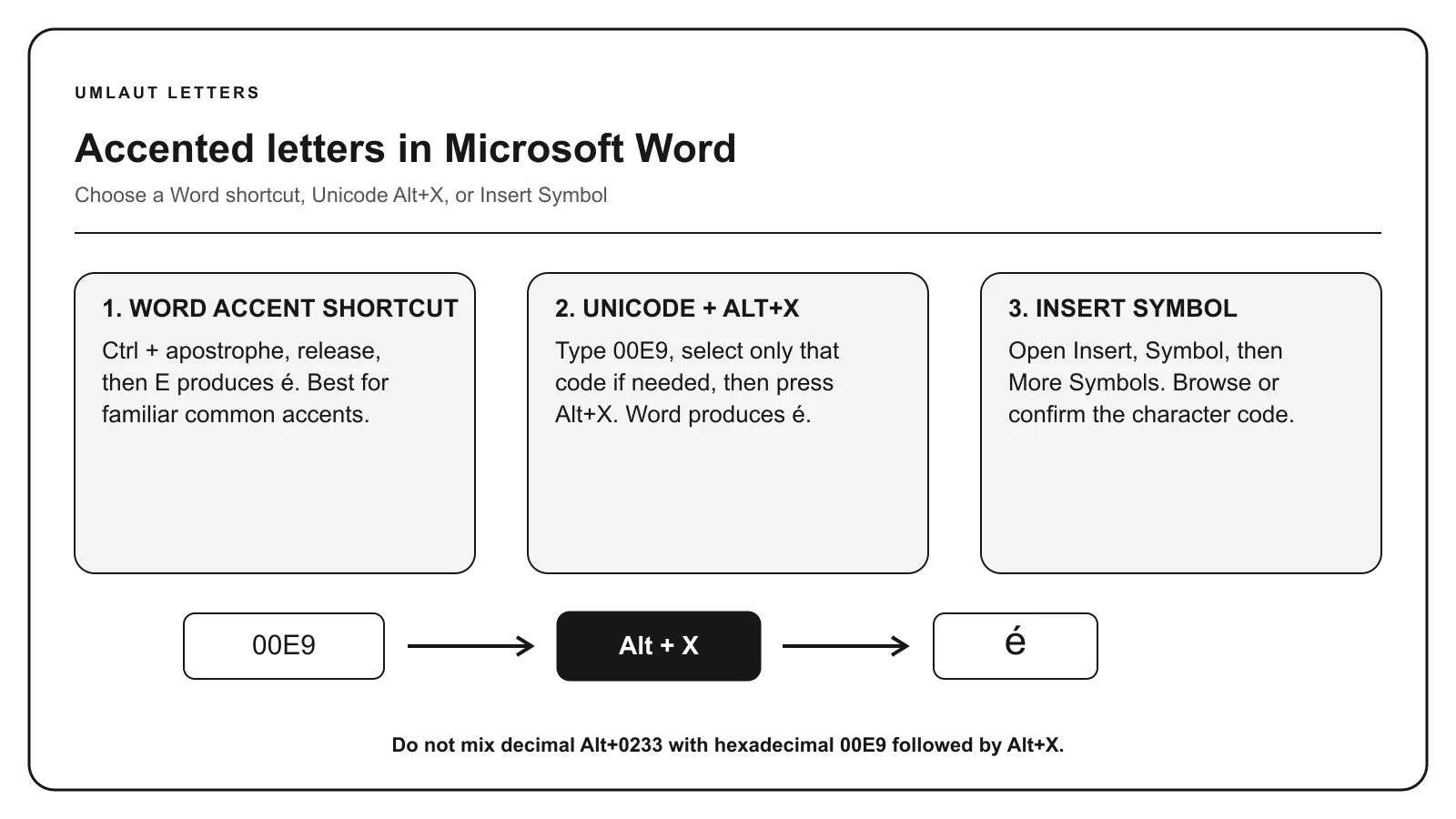
Open Insert, choose Symbol, then More Symbols. Select a font that supports the desired script, locate the character, and insert it. Recently used characters remain easier to reach in later sessions.
The character code field can help confirm identity. Similar glyphs such as ß and Greek β or degree ° and ordinal º are not interchangeable.
For a character used frequently in one project, an AutoCorrect rule can expand a unique trigger into the required Unicode character. Avoid triggers that appear naturally in ordinary writing.
Document-wide or account-wide replacements can have unintended effects, so test the rule and remove it when the project ends if it is no longer useful.
TROUBLESHOOTING
Select only the intended hexadecimal code before pressing Alt+X.
Confirm the Word shortcut, release the accent keys before typing the base letter, and account for your keyboard layout.
Choose a font that supports the character. The Unicode conversion may be correct even if the current font lacks a glyph.
Word Alt+X uses hexadecimal Unicode. Traditional Alt codes use decimal legacy input. Do not interchange the numbers.
COMMON QUESTIONS
Press Ctrl plus apostrophe, release, then press E. Alternatively type 00E9 and press Alt+X.
Press Ctrl + Shift + colon, release, then press U. Or type 00FC and press Alt+X.
No. It is a Microsoft Word and compatible-application feature, not a universal Windows input method.
0252 is the decimal legacy Alt sequence. Word Alt+X expects the hexadecimal Unicode value 00FC.
References: Microsoft character-code guidance, Unicode character charts.