The press-and-hold menu does not appear
Try another app, confirm the key has accent options, or use an Option dead key or Character Viewer.
TYPING GUIDE / MAC
Use the press-and-hold accent menu, Option dead keys, Character Viewer, or a language-specific input source.
Press and hold a base letter for an occasional common accent. Learn Option dead keys for repeated accents on the ABC layout. Add a language input source when you write full sentences, and use Character Viewer for uncommon characters.
METHOD SELECTOR
The best method depends on how often you type the character, whether you know its name or code, and which input layout is active. Use this table as a starting point, then follow the detailed instructions below.
| Situation | Best starting method | Why |
|---|---|---|
| One common accented letter | Press and hold | Shows available variants without memorization |
| Repeated common accents | Option dead keys | Fast once the accent key is familiar |
| Regular language writing | Language input source | Provides the expected alphabet and punctuation |
| Uncommon character or symbol | Character Viewer | Searches a broader Unicode collection |
On the ABC layout, Option + E begins an acute accent, Option + grave begins a grave accent, Option + I begins a circumflex, Option + N begins a tilde, and Option + U begins a diaeresis. Release the keys, then type the base letter. Hold Shift with the final letter for uppercase.
A dead key does not insert the accent immediately because macOS waits for the base letter. Press Space after a dead key when you need the standalone mark supported by that sequence.
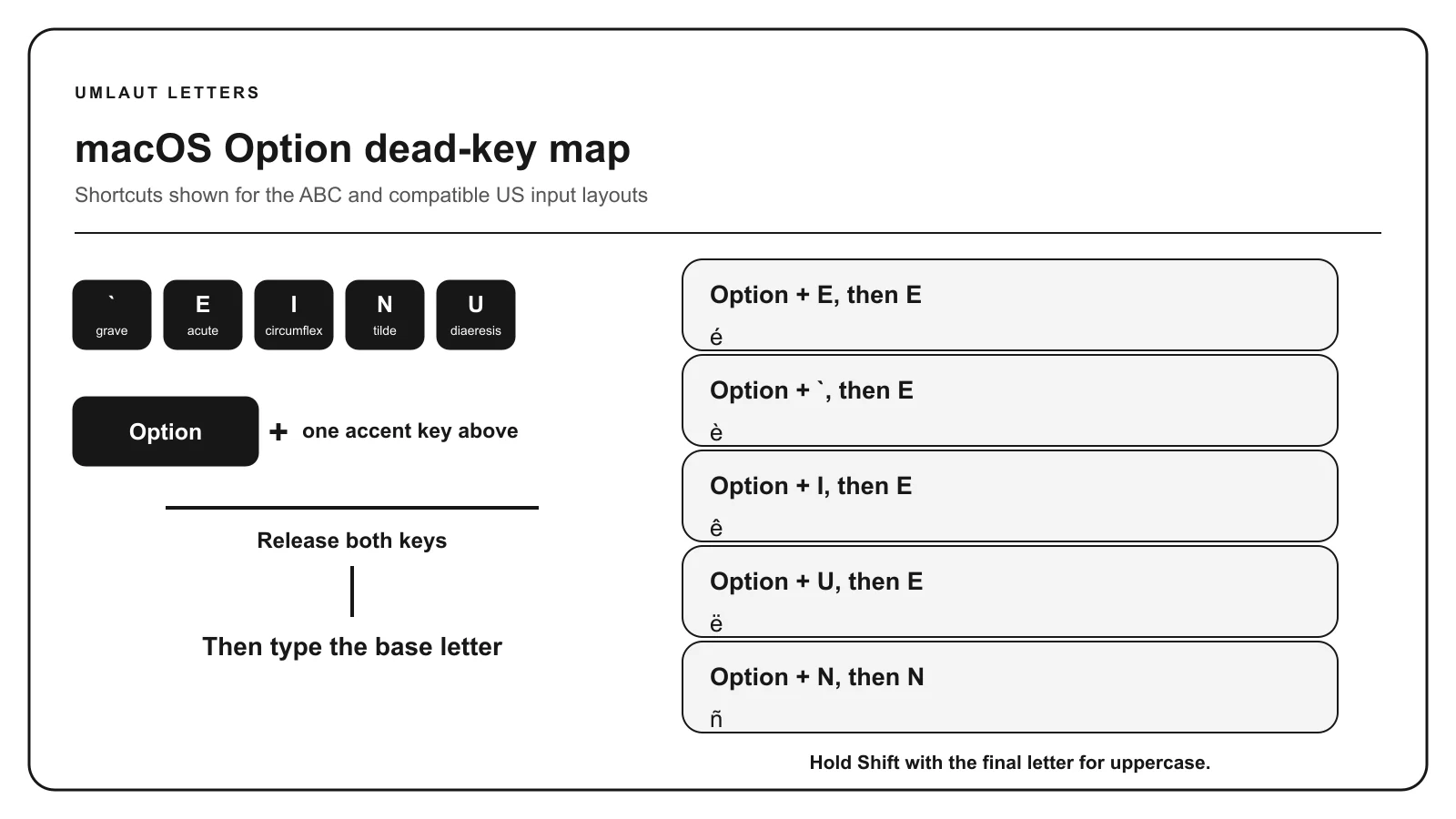
Open Keyboard Viewer and hold Option or Shift to reveal the active layout’s dead keys. Another input source can assign different combinations.
A language-specific input source is preferable for sustained German, Polish, Portuguese, Turkish, Spanish, or French writing. It provides the relevant alphabet and works with language-aware correction more naturally than isolated character entry.
ABC Extended offers broader Latin-script entry when you work across multiple languages or transliteration systems, although it requires learning more combinations.
Open Character Viewer with Control + Command + Space, then search by a recognizable name such as “R with caron” or browse categories. Character names follow Unicode terminology, which can differ from the everyday language name.
Check the chosen glyph in the destination font. Character Viewer can insert the right code point even when a particular font cannot display it.
TROUBLESHOOTING
Try another app, confirm the key has accent options, or use an Option dead key or Character Viewer.
The active input source differs from the documented ABC layout. Check the input menu and use Keyboard Viewer.
Use the complete precomposed character or the intended dead-key sequence. A combining mark entered separately can behave differently.
Add the corresponding language input source instead of relying on the limited accent menu.
COMMON QUESTIONS
On the ABC layout, press Option + E, release, then press E. Hold Shift with the final E for É.
Press Option + U, release, then press U. Hold Shift with the final U for Ü.
It is a key combination that waits for the next letter and applies a mark to it instead of inserting immediately.
No. Its choices vary by base letter, input source, and app. Use Character Viewer or another input source for uncommon forms.
References: Apple accent-entry guidance, Unicode character charts.