Nothing happens
Check that you used the numeric keypad with Num Lock in the appropriate state. The top number row does not work for the traditional method.
TYPING GUIDE / WINDOWS ALT CODES
Understand when Windows Alt codes work, why leading zeros and the numeric keypad matter, and when Unicode entry is the better method.
Traditional Windows Alt codes require a numeric keypad. Hold Alt, type the complete decimal sequence, and release Alt. Use the leading zero when shown. Because results can depend on the app and active character set, use a language layout, Character Map, or Word Alt+X when a code is not dependable.
METHOD SELECTOR
The best method depends on how often you type the character, whether you know its name or code, and which input layout is active. Use this table as a starting point, then follow the detailed instructions below.
| Situation | Best starting method | Why |
|---|---|---|
| Common Latin-1 character | Four-digit Alt code | Convenient with a numeric keypad and verified sequence |
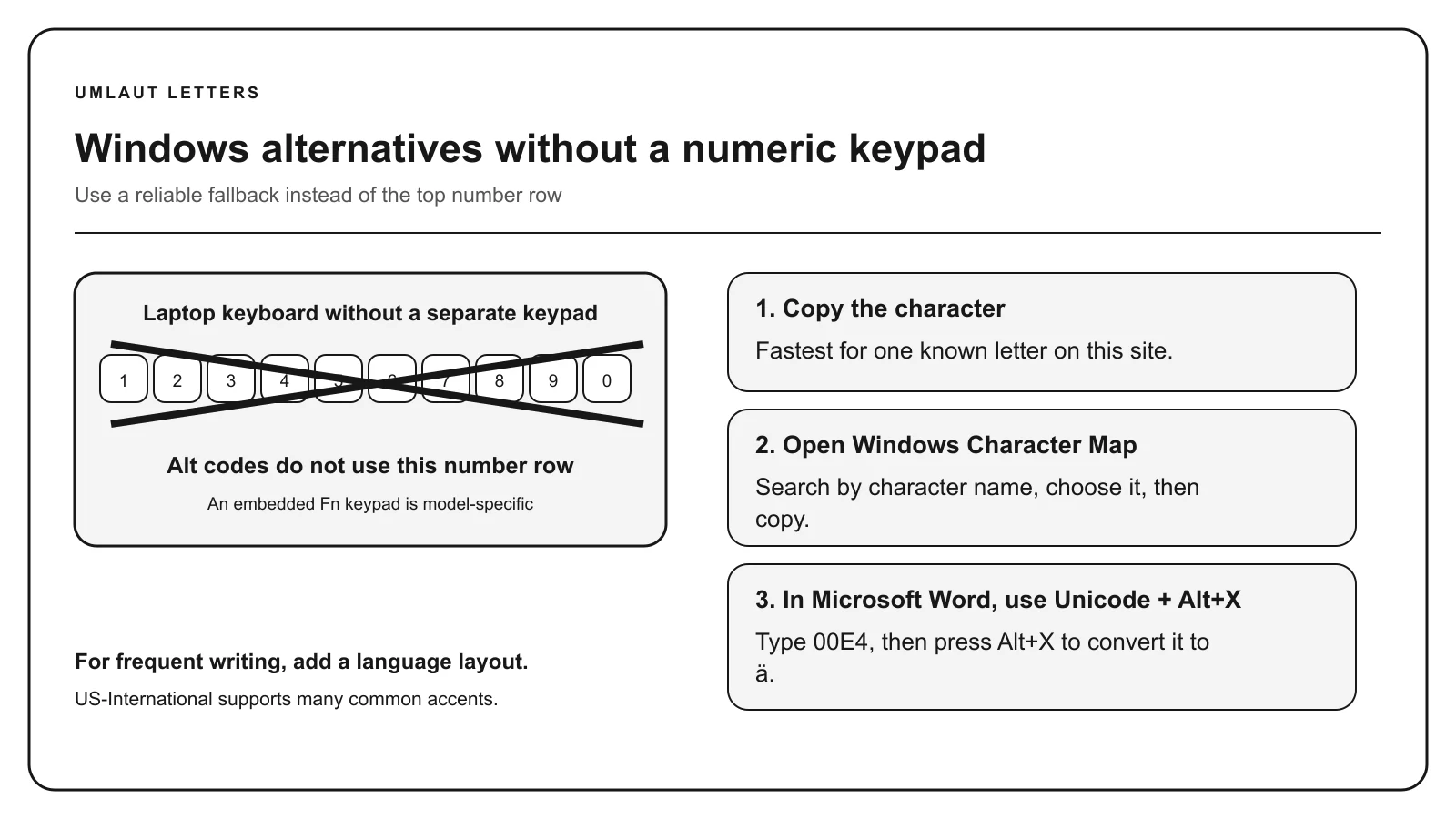
| Laptop without keypad | Copy, layout, or Character Map | The top number row does not perform traditional Alt entry |
| Extended Latin character | Word Alt+X or language layout | Many characters lack a reliable legacy Alt sequence |
| Frequent multilingual typing | Keyboard layout | Avoids memorizing many decimal numbers |
Alt codes are a Windows input technique associated with legacy character sets. The familiar four-digit sequences with a leading zero use decimal numbers and require the numeric keypad. They are not the same as Unicode hexadecimal values.
For example, Alt+0252 can produce ü in a compatible Windows context, while the Unicode value for ü is U+00FC. Word uses 00FC followed by Alt+X, not 0252.
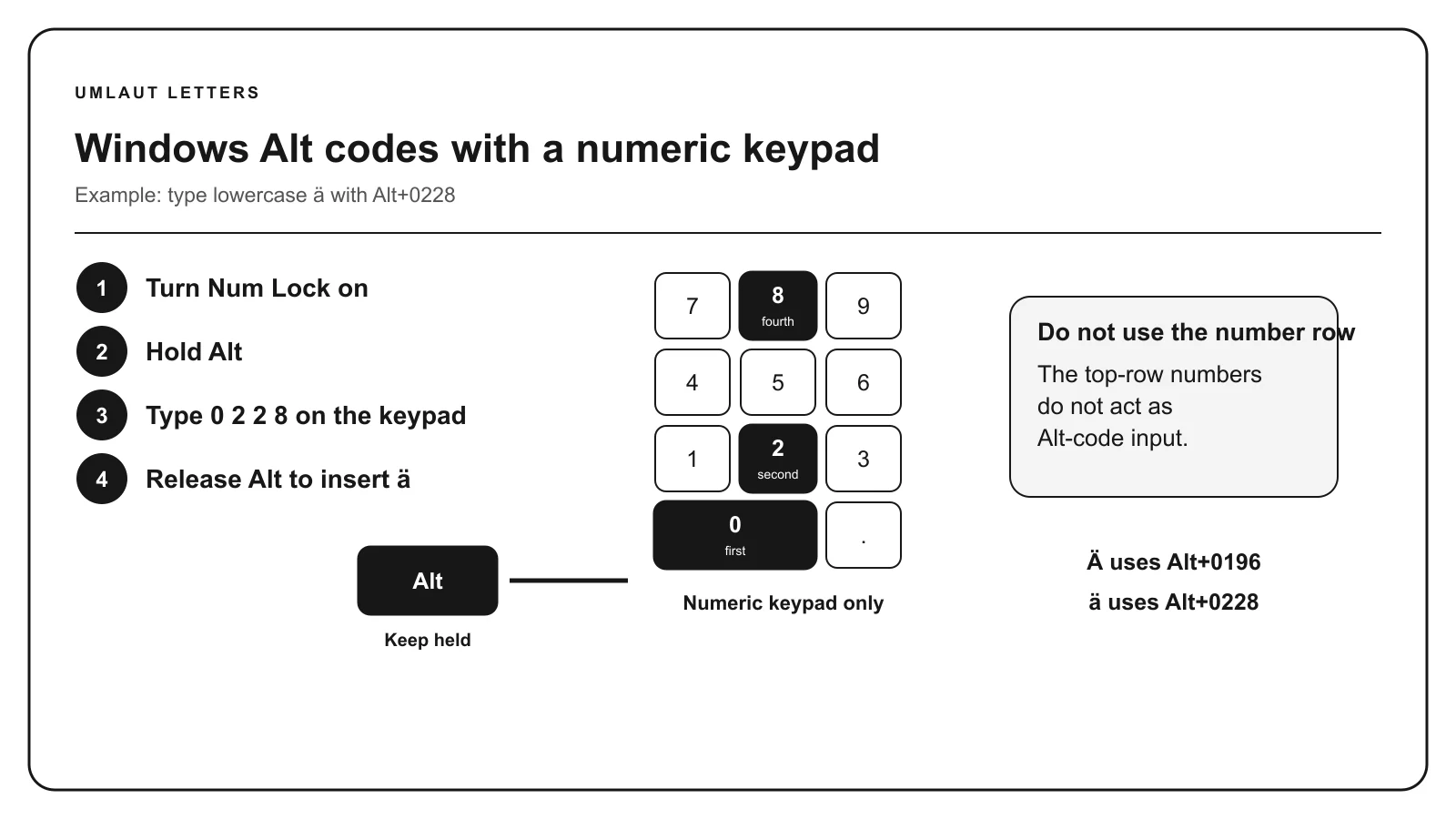
The most useful stable group covers Latin-1 accented vowels and characters such as ñ, ç, and ß. Examples include Alt+0225 for á, Alt+0233 for é, Alt+0241 for ñ, Alt+0231 for ç, Alt+0252 for ü, and Alt+0223 for ß.
Always confirm the code on the focused character page. Short forms and codes presented without a leading zero can use a different code page and produce another character.
The method depends on Windows, the numeric keypad, the application, and legacy character handling. Remote desktop sessions, compact laptop keyboards, browser fields, and specialized applications can behave differently.
Do not invent an Alt code by converting a Unicode value to decimal. Unicode code points and legacy Alt input are separate systems, even when a number happens to match in one environment.
Use Word’s hexadecimal Alt+X conversion for exact code points in Word. Use Character Map when you want a visual browser. Install a language keyboard for repeated writing, or copy the verified Unicode character for one-time use.
These alternatives are especially important for Polish, Czech, Turkish, and transliteration characters outside the small Latin-1 range.
TROUBLESHOOTING
Check that you used the numeric keypad with Num Lock in the appropriate state. The top number row does not work for the traditional method.
Use the complete four-digit sequence with the leading zero. The app or active legacy character set may still differ.
Type the character in a simple Windows app or use copy and paste. Browser and web-app shortcuts can conflict.
Use a language layout, Character Map, Word Alt+X, or copy it. “Not standard” is more accurate than an unreliable number.
COMMON QUESTIONS
They require numeric-keypad input, and many keyboards require Num Lock to make those keys enter digits.
Leading-zero sequences select the expected Windows character mapping. Omitting it can use a different legacy code page.
No. Traditional Alt entry uses decimal legacy codes. Unicode values are normally written in hexadecimal with U+.
Use copy and paste, Character Map, a language keyboard, or Word Alt+X where supported.
References: Microsoft Windows keyboard guidance, Microsoft character-code guidance, Unicode character charts.