Special characters is unavailable
The feature is intended for Docs and Slides on desktop. On mobile or in Sheets, use the system keyboard or copy and paste.
TYPING GUIDE / GOOGLE DOCS
Use your operating-system keyboard for routine accents, Google Docs Special characters for visual search, or copy and paste an exact Unicode character.
Google Docs uses the keyboard input provided by Windows, macOS, ChromeOS, or mobile. For one unfamiliar character on desktop, choose Insert, then Symbols, then Special characters. For regular language writing, enable the language layout at the operating-system level.
METHOD SELECTOR
The best method depends on how often you type the character, whether you know its name or code, and which input layout is active. Use this table as a starting point, then follow the detailed instructions below.
| Situation | Best starting method | Why |
|---|---|---|
| One known character | Copy and paste | Fast and preserves the exact Unicode value |
| Character known by appearance | Insert Special characters | Browse, search, or draw the shape |
| Repeated accents | Operating-system dead keys | Works directly while typing |
| Complete language writing | Language keyboard layout | Provides the complete practical character set |
On a computer, choose Insert, then Symbols, then Special characters. Search by a name such as “letter N with tilde,” browse a category, or draw the shape in the input area. Select the result to place it at the cursor.
Search terminology often follows Unicode-style names. A linguistic term may differ, so try the base letter and mark when an everyday term gives no result.
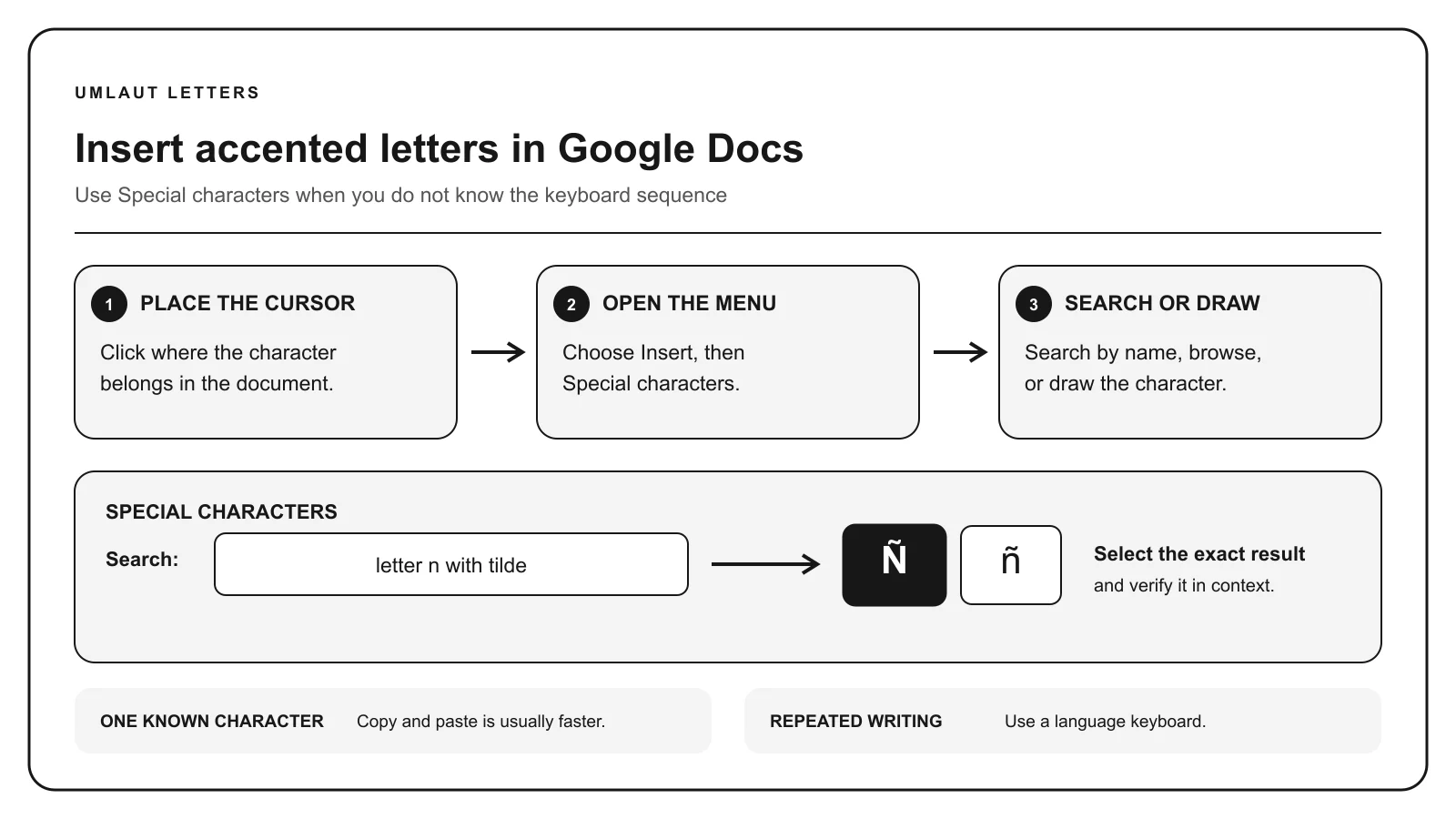
Google Docs does not replace your system’s keyboard layout. Windows language layouts, US-International dead keys, Mac Option sequences, ChromeOS input methods, and mobile long-press menus all enter Unicode text into the document.
When you type a whole language regularly, configure its keyboard outside Docs. This also makes the characters available in email, forms, and other applications.
Copying is useful when you can identify the character on a focused reference page but do not know its input method. Paste it at the cursor and check the original spelling and capitalization.
The destination document controls the font. A slightly different glyph shape does not necessarily mean the character changed. Use Undo immediately if the wrong variant was selected.
Docs supports Unicode, so there is normally no technical reason to remove accents. Keep marks in names and language text. If content must later enter a restricted system, follow that system’s documented fallback rather than applying one language’s rule universally.
For example, German ü may become ue when the character is unavailable, but that replacement does not apply automatically to Spanish or Turkish ü.
TROUBLESHOOTING
The feature is intended for Docs and Slides on desktop. On mobile or in Sheets, use the system keyboard or copy and paste.
Try the Unicode-style construction, such as “Latin small letter C with cedilla,” or search by the base letter and mark.
The Docs font controls the glyph design. Confirm the code point or copy from the focused page if identity matters.
Check the destination format, encoding, and font. Google Docs itself supports Unicode characters.
COMMON QUESTIONS
On desktop, place the cursor and choose Insert, then Symbols, then Special characters.
Word-style Alt+X is not a standard Google Docs feature. Use your system keyboard, Special characters, or copy and paste.
Use the mobile keyboard’s long-press menu or add the relevant language keyboard.
Yes. The characters are stored as Unicode text, subject to the selected font having a visible glyph.
References: Google Docs Editors Help for special characters, Unicode character charts.